
DeadAir Audio Analyzer for Ghost Hunters ( Windows Desktop App)
$29.99
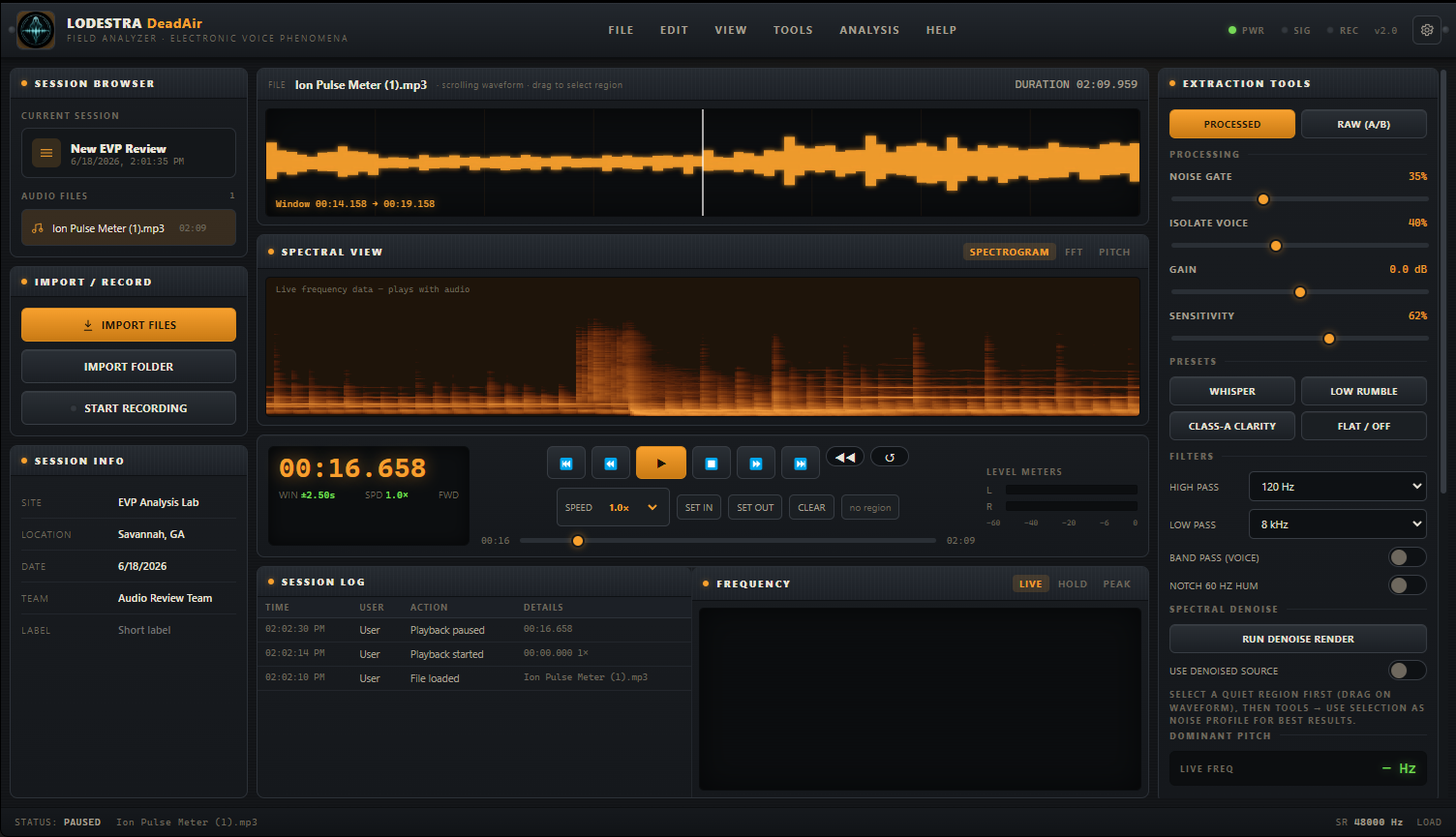
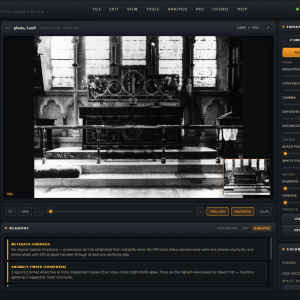
The DeadAir Audio Analyzer is a standalone desktop application for reviewing, analyzing, documenting, and exporting possible EVP audio evidence. Built for serious paranormal investigators, it combines waveform review, spectral analysis, audio cleanup tools, marker tagging, evidence notes, project files, and professional PDF reporting into a single focused workspace for Windows.
Professional EVP Review, Built for Serious Investigators
The Lodestra DeadAir Audi Analyzer is a dedicated desktop tool for one of the most important parts of paranormal investigation: reviewing audio carefully, documenting what you hear, and keeping your evidence organized enough to stand up to later review.
Designed for paranormal researchers, field investigators, historical researchers, and evidence-minded teams, DeadAir gives you a focused workspace for importing recordings, listening closely, marking possible events, cleaning up difficult audio, tagging contamination, and generating professional evidence reports.
Everything happens on your own computer. Your recordings are not uploaded to a cloud server, which helps protect client privacy, investigation confidentiality, and the integrity of your original audio files.
Import, Record, Review, and Analyze
Load your audio directly into the program by importing individual files, importing entire folders, dragging and dropping audio into the workspace, or recording directly from your computer’s microphone.
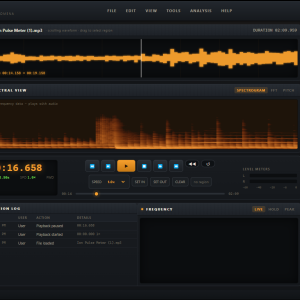
Once loaded, your recording appears as a clear scrolling waveform, giving you a visual map of the session. Click to seek, drag to select a region, zoom in for close inspection, and use playback controls built specifically for audio review.
DeadAir supports detailed listening tools including variable speed playback, reverse playback, looping, raw versus processed A/B comparison, and quick navigation through marked events.
See What You Hear
Audio review should not rely on ears alone. DeadAir includes multiple visual analysis tools to help you understand what is happening inside a recording.
The Spectral View lets you switch between spectrogram, FFT, and pitch trace modes. You can view frequency patterns over time, watch the live frequency content of a sound, and follow dominant pitch behavior. The built-in frequency analyzer includes live, hold, and peak modes, helping you study brief audio events that may disappear too quickly during normal playback.
These tools are especially useful for separating possible voices from electrical hum, equipment noise, environmental contamination, and other ordinary audio sources.
Clean Up Difficult Recordings Without Losing Accountability
Field audio is rarely perfect. Wind, footsteps, room tone, traffic, HVAC systems, electrical hum, and handling noise can all make review difficult.
The DeadAir Audio Analyzer includes real-time extraction tools to shape and clarify recordings, including:
Noise gate
Voice isolation
Gain adjustment
Sensitivity control
High-pass filtering
Low-pass filtering
Voice band-pass filtering
60 Hz hum notch
Whisper preset
Low rumble preset
Class-A clarity preset
Flat/off reset preset
For deeper cleanup, DeadAir also includes spectral denoise, allowing you to select a quiet noise profile and render a cleaner version of the recording. You can then compare the denoised version against the raw original before making any claim.
That comparison matters. The software is built around an honest-evidence workflow, encouraging investigators to document processing, compare against raw audio, and avoid overstating sounds that only appear after heavy enhancement.
Markers, Tags, Notes, and EVP Classes
Markers are the heart of the DeadAir workflow. When you hear something, press M or click Add Marker. The program drops a time-stamped marker, pauses playback, and opens the marker editor so you can document the moment before it disappears into the timeline.
Each marker can include:
A short label
A time-stamped location in the audio
An event tag
An optional EVP class
A note or transcription
A contamination label when applicable
Built-in tags help keep your review organized and honest, including:
Question
Response
Contamination
Equipment
EVP
You can also classify potential EVP events as Class A, Class B, or Class C, depending on clarity and interpretive confidence.
Export Clips, Save Projects, and Generate Reports
DeadAir is not just for listening. It is built for documentation.
Export full processed WAV files, selected regions, or individual clips around specific markers. Save the entire working session as a self-contained .evp project file, including the audio, markers, notes, session details, and tool settings. You can also export session data as JSON for record-keeping or use with other tools.
When your review is complete, generate a clean PDF evidence report that includes your session details, waveform and spectral snapshots, marker log, EVP classes, transcriptions, notes, and tag explanations.
This makes it easier to share findings with your team, revisit a case later, or present a documented review to a client.
Designed for Evidence-Minded Paranormal Work
The DeadAir Field Analyzer does not claim to determine whether a sound is paranormal. That decision belongs to the investigator.
Instead, the software helps you slow down, listen carefully, document clearly, compare honestly, and preserve your process. It is built for investigators who want fewer exaggerated claims and better evidence records.
Good EVP work is not about collecting as many “voices” as possible. It is about being careful enough that the events you cannot explain carry more weight.
Key Features
Import individual audio files or entire folders
Drag and drop audio loading
Record directly from your computer microphone
Scrolling waveform display
Zoomable waveform navigation
Region selection for looping, export, and denoise profiling
Variable playback speed
Reverse playback
Looped playback for close review
Raw versus processed A/B comparison
Live spectrogram view
FFT frequency display
Dominant pitch trace
Live, hold, and peak frequency analyzer modes
Noise gate
Voice isolation
Gain control
Sensitivity control
High-pass and low-pass filters
Voice band-pass filter
60 Hz hum notch
Whisper, Low Rumble, Class-A Clarity, and Flat/Off presets
Spectral denoise rendering
Time-stamped markers
Marker labels and transcriptions
Evidence tags for questions, responses, contamination, equipment, and EVP
EVP class ratings: A, B, and C
Evidence notes panel
Session metadata
Export processed WAV files
Export selected audio regions
Export individual marker clips
Save full .evp project files
Export session data as JSON
Generate PDF evidence reports
Custom team branding and investigator defaults
Custom accent color and logo support
Keyboard shortcuts for fast review
Windows and macOS support
What Makes DeadAir Different?
Most audio tools are built for musicians, podcasters, or engineers. DeadAir is built specifically around the way paranormal investigators actually review audio.
It is not just an editor. It is a case-review workspace.
You can listen, analyze, tag, compare, classify, export, and report from one place. More importantly, the workflow encourages responsible review: raw audio comparison, contamination tagging, processing notes, and clear classification instead of vague claims.
System Requirements
Windows
Windows 10 or 11, 64-bit
Approximately 260 MB disk space for the installed program
4 GB RAM minimum
8 GB RAM recommended for longer recordings and spectral denoise
Headphones strongly recommended
Microphone required only for direct recording inside the app
Evidence Disclaimer
The DeadAir Field Analyzer is a review and documentation tool. It does not determine whether a sound is paranormal, nor does it verify any recording as genuine EVP. The investigator is responsible for interpretation, contamination review, documentation, and final conclusions.
DeadAir Audio Analyzer for Ghost Hunters ( Windows Desktop App)
$29.99
The DeadAir Audio Analyzer is a standalone desktop application for reviewing, analyzing, documenting, and exporting possible EVP audio evidence. Built for serious paranormal investigators, it combines waveform review, spectral analysis, audio cleanup tools, marker tagging, evidence notes, project files, and professional PDF reporting into a single focused workspace for Windows.
Professional EVP Review, Built for Serious Investigators
The Lodestra DeadAir Audi Analyzer is a dedicated desktop tool for one of the most important parts of paranormal investigation: reviewing audio carefully, documenting what you hear, and keeping your evidence organized enough to stand up to later review.
Designed for paranormal researchers, field investigators, historical researchers, and evidence-minded teams, DeadAir gives you a focused workspace for importing recordings, listening closely, marking possible events, cleaning up difficult audio, tagging contamination, and generating professional evidence reports.
Everything happens on your own computer. Your recordings are not uploaded to a cloud server, which helps protect client privacy, investigation confidentiality, and the integrity of your original audio files.
Import, Record, Review, and Analyze
Load your audio directly into the program by importing individual files, importing entire folders, dragging and dropping audio into the workspace, or recording directly from your computer’s microphone.
Once loaded, your recording appears as a clear scrolling waveform, giving you a visual map of the session. Click to seek, drag to select a region, zoom in for close inspection, and use playback controls built specifically for audio review.
DeadAir supports detailed listening tools including variable speed playback, reverse playback, looping, raw versus processed A/B comparison, and quick navigation through marked events.
See What You Hear
Audio review should not rely on ears alone. DeadAir includes multiple visual analysis tools to help you understand what is happening inside a recording.
The Spectral View lets you switch between spectrogram, FFT, and pitch trace modes. You can view frequency patterns over time, watch the live frequency content of a sound, and follow dominant pitch behavior. The built-in frequency analyzer includes live, hold, and peak modes, helping you study brief audio events that may disappear too quickly during normal playback.
These tools are especially useful for separating possible voices from electrical hum, equipment noise, environmental contamination, and other ordinary audio sources.
Clean Up Difficult Recordings Without Losing Accountability
Field audio is rarely perfect. Wind, footsteps, room tone, traffic, HVAC systems, electrical hum, and handling noise can all make review difficult.
The DeadAir Audio Analyzer includes real-time extraction tools to shape and clarify recordings, including:
Noise gate
Voice isolation
Gain adjustment
Sensitivity control
High-pass filtering
Low-pass filtering
Voice band-pass filtering
60 Hz hum notch
Whisper preset
Low rumble preset
Class-A clarity preset
Flat/off reset preset
For deeper cleanup, DeadAir also includes spectral denoise, allowing you to select a quiet noise profile and render a cleaner version of the recording. You can then compare the denoised version against the raw original before making any claim.
That comparison matters. The software is built around an honest-evidence workflow, encouraging investigators to document processing, compare against raw audio, and avoid overstating sounds that only appear after heavy enhancement.
Markers, Tags, Notes, and EVP Classes
Markers are the heart of the DeadAir workflow. When you hear something, press M or click Add Marker. The program drops a time-stamped marker, pauses playback, and opens the marker editor so you can document the moment before it disappears into the timeline.
Each marker can include:
A short label
A time-stamped location in the audio
An event tag
An optional EVP class
A note or transcription
A contamination label when applicable
Built-in tags help keep your review organized and honest, including:
Question
Response
Contamination
Equipment
EVP
You can also classify potential EVP events as Class A, Class B, or Class C, depending on clarity and interpretive confidence.
Export Clips, Save Projects, and Generate Reports
DeadAir is not just for listening. It is built for documentation.
Export full processed WAV files, selected regions, or individual clips around specific markers. Save the entire working session as a self-contained .evp project file, including the audio, markers, notes, session details, and tool settings. You can also export session data as JSON for record-keeping or use with other tools.
When your review is complete, generate a clean PDF evidence report that includes your session details, waveform and spectral snapshots, marker log, EVP classes, transcriptions, notes, and tag explanations.
This makes it easier to share findings with your team, revisit a case later, or present a documented review to a client.
Designed for Evidence-Minded Paranormal Work
The DeadAir Field Analyzer does not claim to determine whether a sound is paranormal. That decision belongs to the investigator.
Instead, the software helps you slow down, listen carefully, document clearly, compare honestly, and preserve your process. It is built for investigators who want fewer exaggerated claims and better evidence records.
Good EVP work is not about collecting as many “voices” as possible. It is about being careful enough that the events you cannot explain carry more weight.
Key Features
Import individual audio files or entire folders
Drag and drop audio loading
Record directly from your computer microphone
Scrolling waveform display
Zoomable waveform navigation
Region selection for looping, export, and denoise profiling
Variable playback speed
Reverse playback
Looped playback for close review
Raw versus processed A/B comparison
Live spectrogram view
FFT frequency display
Dominant pitch trace
Live, hold, and peak frequency analyzer modes
Noise gate
Voice isolation
Gain control
Sensitivity control
High-pass and low-pass filters
Voice band-pass filter
60 Hz hum notch
Whisper, Low Rumble, Class-A Clarity, and Flat/Off presets
Spectral denoise rendering
Time-stamped markers
Marker labels and transcriptions
Evidence tags for questions, responses, contamination, equipment, and EVP
EVP class ratings: A, B, and C
Evidence notes panel
Session metadata
Export processed WAV files
Export selected audio regions
Export individual marker clips
Save full .evp project files
Export session data as JSON
Generate PDF evidence reports
Custom team branding and investigator defaults
Custom accent color and logo support
Keyboard shortcuts for fast review
Windows and macOS support
What Makes DeadAir Different?
Most audio tools are built for musicians, podcasters, or engineers. DeadAir is built specifically around the way paranormal investigators actually review audio.
It is not just an editor. It is a case-review workspace.
You can listen, analyze, tag, compare, classify, export, and report from one place. More importantly, the workflow encourages responsible review: raw audio comparison, contamination tagging, processing notes, and clear classification instead of vague claims.
System Requirements
Windows
Windows 10 or 11, 64-bit
Approximately 260 MB disk space for the installed program
4 GB RAM minimum
8 GB RAM recommended for longer recordings and spectral denoise
Headphones strongly recommended
Microphone required only for direct recording inside the app
Evidence Disclaimer
The DeadAir Field Analyzer is a review and documentation tool. It does not determine whether a sound is paranormal, nor does it verify any recording as genuine EVP. The investigator is responsible for interpretation, contamination review, documentation, and final conclusions.
Reviews
There are no reviews yet.
Reviews
There are no reviews yet.