
DeadAir Audio Analyzer Pro ( Windows Desktop App)
$29.99
DeadAir Audio Analyzer Pro is a serious EVP and field-audio review tool built for paranormal investigators who want more than simple playback. Import, record, isolate, slow, reverse, mark, classify, and document possible EVP events with a non-destructive workflow that keeps the original audio untouched.
After purchase, your login and download information will be sent by email. If you do not see it in your inbox, please check your spam or junk folder.
DeadAir Audio Analyzer Pro: EVP Review Built Like a Field Instrument
DeadAir Audio Analyzer Pro is a desktop audio analysis tool designed for paranormal investigators who take EVP review seriously. Instead of scrubbing through long recordings in a basic media player, DeadAir gives you a purpose-built workspace for importing field audio, viewing waveforms, reading spectral data, isolating voice-like sounds, marking events, scoring contamination, and exporting professional evidence reports.
It is built around one important principle: a good investigation tool should make it just as easy to rule something out as it is to find something interesting. DeadAir does not tell you that a sound is paranormal. It gives you the acoustic information you need to make a better, more defensible judgment.
The program uses waveform and spectral views, non-destructive processing, A/B raw comparison, event markers, contamination scoring, and PDF evidence reporting to help investigators review audio with structure instead of guesswork. According to the DeadAir Pro manual, the software is designed as a standalone instrument for reviewing field audio and documenting electronic voice phenomena, with local processing and offline use after the first sign-in.
Built for Honest EVP Analysis
DeadAir Audio Analyzer Pro is not an AI ghost detector. It does not claim to identify spirits, label voices from beyond, or make paranormal conclusions for you.
Instead, DeadAir uses deterministic acoustic analysis. It measures properties of the sound itself: energy, frequency balance, tonal structure, broadband noise, voice-like characteristics, hum, spikes, and possible contamination. The goal is to help you understand what a sound physically is before you decide what it might mean.
That makes DeadAir especially useful for serious investigators, team leaders, researchers, and anyone who wants to present EVP evidence with more discipline and less speculation.
Local, Private, and Offline
Your audio stays on your computer.
DeadAir performs its analysis locally. Your recordings are not uploaded to a cloud server for review, processing, or storage. After the first sign-in and activation, DeadAir can run offline, making it useful for field review in basements, old buildings, rural locations, remote cemeteries, or anywhere internet access is unreliable.
The manual notes that internet is needed once for first sign-in, then the software works fully offline after activation.
A Complete EVP Review Workspace
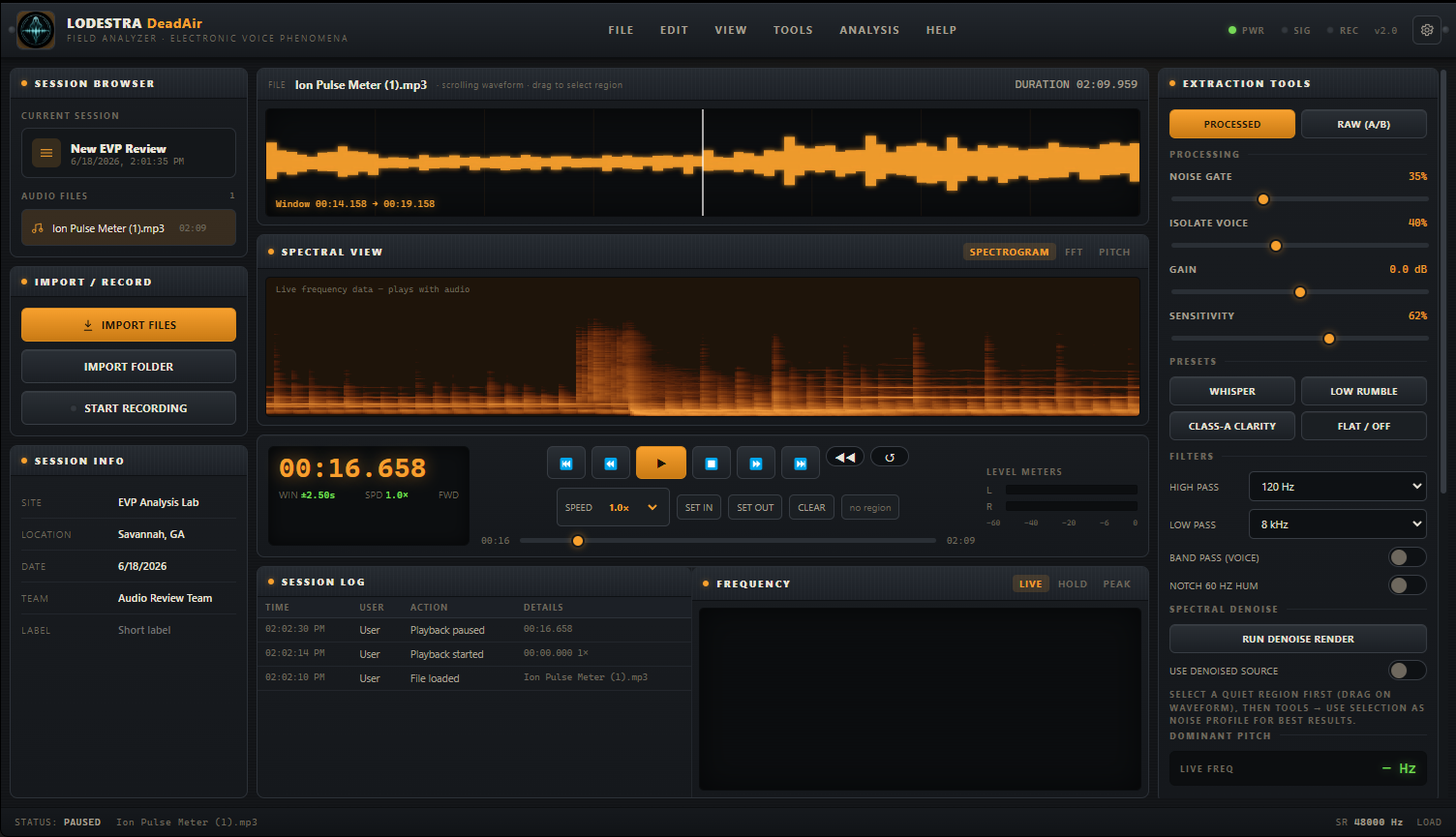
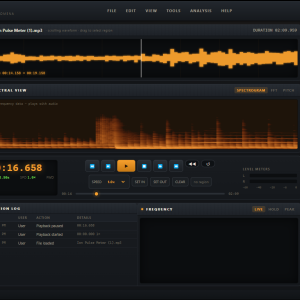
DeadAir is organized into a clean three-column workspace:
Left column: session browser, import tools, recording controls, and session information.
Center column: waveform, spectral view, transport controls, playback, looping, region selection, and live frequency readout.
Right column: extraction tools, layer stack, markers, notes, contamination scoring, metadata, and evidence documentation.
This layout gives investigators a repeatable review process: load the audio, examine it visually, listen carefully, isolate areas of interest, mark possible events, compare against the raw file, and document the results.
Key Features
Import, Record, and Review Field Audio
DeadAir supports common audio formats including WAV, MP3, M4A, OGG, FLAC, AAC, and WebM. You can import individual files, bring in an entire folder of recordings, or record live from a microphone or audio interface.
This makes it practical for reviewing a single EVP clip or an entire night of investigation audio.
Waveform and Spectral Views
The waveform gives you a visual timeline of the audio, making it easier to spot spikes, pauses, knocks, sudden sounds, and possible voice events.
The spectral view lets you examine the frequency structure behind the sound. This is especially important for EVP review because different audio sources often leave different visual signatures. A voice-like event, electrical hum, handling bump, footstep, fan, or furnace may look very different when viewed spectrally.
DeadAir includes three spectral modes:
Spectrogram
A frequency-over-time view for studying harmonic structure, hum, broadband noise, and possible speech patterns.
FFT Bars
A live frequency spectrum view for identifying tones, resonances, and dominant frequency areas.
Pitch Trace
A visual trace of dominant pitch over time, useful for studying possible vocal contours.
Raw A/B Comparison
One of DeadAir’s most important tools is the ability to instantly compare processed audio against the untouched original.
This helps prevent over-processing, false interpretation, and accidental enhancement artifacts. You can clean up a clip, isolate a region, or apply layers, then quickly return to the raw source to make sure you are not hearing something created by the processing itself.
Extraction Tools and Presets
DeadAir includes quick-access extraction tools for a fast first pass at difficult audio.
Tools include:
Noise gate
Voice isolation
Gain control
Sensitivity adjustment
High-pass filter
Low-pass filter
Band-pass voice filter
60 Hz hum notch
Spectral denoise
Dominant pitch readout
Presets include:
Whisper
Low Rumble
Class-A Clarity
Flat / Off
These presets are meant as starting points, not final answers. They help you quickly get close, then fine-tune the audio based on the specific recording.
Spectral Denoise with Noise Profile Capture
DeadAir allows you to capture a noise profile from a quiet section of the recording. Once the software learns the background room tone, it can apply spectral denoise more precisely.
This is especially useful for field recordings with constant hiss, HVAC noise, room tone, distant hum, or environmental background that makes faint sounds harder to hear.
Pro Layer Stack
The Pro Layer Stack is one of the most powerful parts of DeadAir Audio Analyzer Pro. Instead of permanently altering your audio, you can build a non-destructive chain of processing layers over the original recording.
You can add, adjust, reorder, enable, disable, or remove layers at any time. The original audio is never changed until you choose to export a processed version.
Layer types include:
High-pass filter
Low-pass filter
Notch hum filter
Band-pass voice filter
Parametric EQ
Voice isolation
Gain
Noise gate
Spectral denoise
Reverse
Time stretch
Pitch shift
The manual describes the Layer Stack as non-destructive processing applied in order over the untouched original, allowing users to experiment freely while preserving the source audio.
Time Stretch Without Pitch Drop
DeadAir Pro includes phase-vocoder time stretching, allowing you to slow down audio without lowering the pitch.
This is extremely useful for EVP review. Standard slow playback can make a sound deeper and more distorted, like slowing down tape. DeadAir’s time-stretch layer lets you slow a fast or faint utterance while keeping the pitch more natural.
For example, a short two-second whisper can be stretched to give you more time to hear consonants, syllables, and tonal movement without turning it into a muddy, artificially deep sound.
Pitch Shift Without Changing Speed
Pitch shift allows you to raise or lower the pitch of a sound without changing its timing.
This can help clarify low, muddy sounds or soften thin, harsh sounds while preserving the original timing of the event. Because the duration stays the same, you can compare the shifted and original versions moment for moment.
Reverse Playback and Reverse Layer
DeadAir includes two forms of reverse review.
The live reverse playback control lets you quickly listen backward during review.
The Reverse layer allows you to make reversal part of the processing chain, meaning it can be combined with filters, denoise, time stretch, pitch shift, and export.
Automatic Event Detection and Contamination Scoring
DeadAir Pro can scan a recording and identify notable audio events by acoustic shape, not simply volume.
Detected events can be automatically marked, classified, and scored for contamination. This turns long recordings into a more manageable list of moments worth reviewing.
DeadAir can help identify categories such as:
Voice-like signal
Knock or impact
Hum or tonal contamination
Transient spikes
Broadband noise events
Contamination scoring helps flag moments where footsteps, handling noise, hum, room noise, or other environmental sounds may make an EVP claim weaker.
Markers and EVP Classification
Investigators can place markers directly on the audio timeline. Each marker can include event type, EVP class, contamination score, timestamp, notes, and supporting observations.
This creates a structured review log instead of scattered handwritten notes or forgotten timestamps.
Evidence Reports and Cards
DeadAir Pro can generate evidence documentation from your session data.
Markers can become individual evidence cards in a PDF report, complete with acoustic notes and waveform references. Session information such as site, location, date, team, and file metadata can flow into the report automatically when entered during review.
This makes DeadAir useful not just for listening, but for presenting findings to a client, team, audience, or case file.
Branding and Team Setup
DeadAir Pro supports branded reporting and team/session setup, making it suitable for paranormal teams that want consistent documentation across investigations.
Use it to create cleaner, more professional evidence packets instead of loose clips with no context.
Projects, Sessions, and Export
Save your work as a project, return to previous sessions, export processed audio, export selected regions, and document the analysis path used to reach your conclusions.
Because the workflow is non-destructive, you can return to the original source at any time.
What Makes DeadAir Pro Different?
Most audio tools are built for music, podcasts, or production work. DeadAir Audio Analyzer Pro is built specifically for paranormal field review.
It gives investigators the tools they actually need:
A waveform to locate events
A spectrogram to inspect frequency behavior
Raw A/B comparison to avoid fooling yourself
Non-destructive processing to preserve the original
Time stretch and pitch shift for careful listening
Event detection to reduce hours of review time
Contamination scoring to improve honesty
Markers and notes to document every decision
Reports and evidence cards for presentation
DeadAir is not about making audio sound spooky. It is about helping investigators review strange audio more carefully.
Who Is DeadAir Audio Analyzer Pro For?
DeadAir is ideal for:
Paranormal investigators
EVP researchers
Ghost hunting teams
Case managers
Field audio reviewers
Historical location investigators
Content creators reviewing investigation audio
Teams that need professional reports
Anyone tired of reviewing EVP clips in basic audio players
Features
Import WAV, MP3, M4A, OGG, FLAC, AAC, and WebM files
Import full folders of investigation audio
Record live from microphone or audio interface
Waveform view
Spectrogram view
FFT frequency bars
Pitch trace view
Raw A/B comparison
Noise gate
Voice isolation
Gain control
Sensitivity control
High-pass filter
Low-pass filter
Band-pass voice filter
60 Hz hum notch
Spectral denoise
Noise profile capture
Dominant pitch readout
Non-destructive Pro Layer Stack
Time stretch without pitch drop
Pitch shift without speed change
Reverse playback
Exportable reverse layer
Automatic event detection
Contamination scoring
EVP markers and classification
Evidence notes
Evidence cards
PDF reporting
Branding and team setup
Project saving
Processed WAV export
Selected region export
Offline use after activation
Local processing, no cloud audio upload
System Requirements
Windows 10 or 11, 64-bit
4 GB RAM minimum
8 GB RAM or more recommended for long recordings and heavy layer stacks
Standard audio output device
Microphone or audio interface required only for live recording
Internet connection required for first sign-in and activation
Offline use available after activation
License and Activation
DeadAir Audio Analyzer Pro requires a one-time sign-in on each device. Use the email and password associated with your purchase account. After activation, the software stores a secure local license token and can run offline.
Each account may activate up to three devices. Signing out of one device frees a slot for another machine.
Delivery
This is a digital software product.
After purchase, your download and login information will be sent by email and available under My Account at Lodestra.com
Important: If you do not see your login information in your inbox, please check your spam, junk, or promotions folder.
What’s Included
DeadAir Audio Analyzer Pro software
Digital download access
Account-based activation
Use on up to three devices
Complete user manual
Local/offline analysis after first sign-in
EVP review, processing, marking, and reporting tools
What’s Not Included
This software does not determine whether a sound is paranormal
This software does not use AI to identify spirits
This software does not upload your audio for cloud analysis
This software does not replace investigator judgment
A microphone or recorder is not included
A computer is required
FAQ
Does DeadAir Audio Analyzer Pro tell me if something is a ghost?
No. DeadAir does not make paranormal claims for you. It helps you analyze the sound, review the waveform and spectral content, isolate possible voice-like events, score contamination, and document your findings.
Does DeadAir use AI?
No. DeadAir’s analysis is based on deterministic acoustics, not AI interpretation. It measures properties of the audio and gives you tools to review those properties.
Does my audio get uploaded?
No. DeadAir processes your audio locally on your computer.
Can I use DeadAir offline?
Yes. DeadAir needs internet access for the first sign-in and activation. After that, it can run offline on that device.
How many devices can I activate?
Each account can activate up to three devices.
What kind of files can I import?
DeadAir supports WAV, MP3, M4A, OGG, FLAC, AAC, and WebM.
Can I record directly in the app?
Yes. You can record live using a microphone or audio interface.
Can I export my findings?
Yes. You can export processed audio, selected regions, saved sessions, and evidence reports.
What should I do if I do not receive my login information?
Check your spam, junk, or promotions folder. Your login and download information is sent to the email address used at checkout.
DeadAir Audio Analyzer Pro ( Windows Desktop App)
$29.99
DeadAir Audio Analyzer Pro is a serious EVP and field-audio review tool built for paranormal investigators who want more than simple playback. Import, record, isolate, slow, reverse, mark, classify, and document possible EVP events with a non-destructive workflow that keeps the original audio untouched.
After purchase, your login and download information will be sent by email. If you do not see it in your inbox, please check your spam or junk folder.
DeadAir Audio Analyzer Pro: EVP Review Built Like a Field Instrument
DeadAir Audio Analyzer Pro is a desktop audio analysis tool designed for paranormal investigators who take EVP review seriously. Instead of scrubbing through long recordings in a basic media player, DeadAir gives you a purpose-built workspace for importing field audio, viewing waveforms, reading spectral data, isolating voice-like sounds, marking events, scoring contamination, and exporting professional evidence reports.
It is built around one important principle: a good investigation tool should make it just as easy to rule something out as it is to find something interesting. DeadAir does not tell you that a sound is paranormal. It gives you the acoustic information you need to make a better, more defensible judgment.
The program uses waveform and spectral views, non-destructive processing, A/B raw comparison, event markers, contamination scoring, and PDF evidence reporting to help investigators review audio with structure instead of guesswork. According to the DeadAir Pro manual, the software is designed as a standalone instrument for reviewing field audio and documenting electronic voice phenomena, with local processing and offline use after the first sign-in.
Built for Honest EVP Analysis
DeadAir Audio Analyzer Pro is not an AI ghost detector. It does not claim to identify spirits, label voices from beyond, or make paranormal conclusions for you.
Instead, DeadAir uses deterministic acoustic analysis. It measures properties of the sound itself: energy, frequency balance, tonal structure, broadband noise, voice-like characteristics, hum, spikes, and possible contamination. The goal is to help you understand what a sound physically is before you decide what it might mean.
That makes DeadAir especially useful for serious investigators, team leaders, researchers, and anyone who wants to present EVP evidence with more discipline and less speculation.
Local, Private, and Offline
Your audio stays on your computer.
DeadAir performs its analysis locally. Your recordings are not uploaded to a cloud server for review, processing, or storage. After the first sign-in and activation, DeadAir can run offline, making it useful for field review in basements, old buildings, rural locations, remote cemeteries, or anywhere internet access is unreliable.
The manual notes that internet is needed once for first sign-in, then the software works fully offline after activation.
A Complete EVP Review Workspace
DeadAir is organized into a clean three-column workspace:
Left column: session browser, import tools, recording controls, and session information.
Center column: waveform, spectral view, transport controls, playback, looping, region selection, and live frequency readout.
Right column: extraction tools, layer stack, markers, notes, contamination scoring, metadata, and evidence documentation.
This layout gives investigators a repeatable review process: load the audio, examine it visually, listen carefully, isolate areas of interest, mark possible events, compare against the raw file, and document the results.
Key Features
Import, Record, and Review Field Audio
DeadAir supports common audio formats including WAV, MP3, M4A, OGG, FLAC, AAC, and WebM. You can import individual files, bring in an entire folder of recordings, or record live from a microphone or audio interface.
This makes it practical for reviewing a single EVP clip or an entire night of investigation audio.
Waveform and Spectral Views
The waveform gives you a visual timeline of the audio, making it easier to spot spikes, pauses, knocks, sudden sounds, and possible voice events.
The spectral view lets you examine the frequency structure behind the sound. This is especially important for EVP review because different audio sources often leave different visual signatures. A voice-like event, electrical hum, handling bump, footstep, fan, or furnace may look very different when viewed spectrally.
DeadAir includes three spectral modes:
Spectrogram
A frequency-over-time view for studying harmonic structure, hum, broadband noise, and possible speech patterns.
FFT Bars
A live frequency spectrum view for identifying tones, resonances, and dominant frequency areas.
Pitch Trace
A visual trace of dominant pitch over time, useful for studying possible vocal contours.
Raw A/B Comparison
One of DeadAir’s most important tools is the ability to instantly compare processed audio against the untouched original.
This helps prevent over-processing, false interpretation, and accidental enhancement artifacts. You can clean up a clip, isolate a region, or apply layers, then quickly return to the raw source to make sure you are not hearing something created by the processing itself.
Extraction Tools and Presets
DeadAir includes quick-access extraction tools for a fast first pass at difficult audio.
Tools include:
Noise gate
Voice isolation
Gain control
Sensitivity adjustment
High-pass filter
Low-pass filter
Band-pass voice filter
60 Hz hum notch
Spectral denoise
Dominant pitch readout
Presets include:
Whisper
Low Rumble
Class-A Clarity
Flat / Off
These presets are meant as starting points, not final answers. They help you quickly get close, then fine-tune the audio based on the specific recording.
Spectral Denoise with Noise Profile Capture
DeadAir allows you to capture a noise profile from a quiet section of the recording. Once the software learns the background room tone, it can apply spectral denoise more precisely.
This is especially useful for field recordings with constant hiss, HVAC noise, room tone, distant hum, or environmental background that makes faint sounds harder to hear.
Pro Layer Stack
The Pro Layer Stack is one of the most powerful parts of DeadAir Audio Analyzer Pro. Instead of permanently altering your audio, you can build a non-destructive chain of processing layers over the original recording.
You can add, adjust, reorder, enable, disable, or remove layers at any time. The original audio is never changed until you choose to export a processed version.
Layer types include:
High-pass filter
Low-pass filter
Notch hum filter
Band-pass voice filter
Parametric EQ
Voice isolation
Gain
Noise gate
Spectral denoise
Reverse
Time stretch
Pitch shift
The manual describes the Layer Stack as non-destructive processing applied in order over the untouched original, allowing users to experiment freely while preserving the source audio.
Time Stretch Without Pitch Drop
DeadAir Pro includes phase-vocoder time stretching, allowing you to slow down audio without lowering the pitch.
This is extremely useful for EVP review. Standard slow playback can make a sound deeper and more distorted, like slowing down tape. DeadAir’s time-stretch layer lets you slow a fast or faint utterance while keeping the pitch more natural.
For example, a short two-second whisper can be stretched to give you more time to hear consonants, syllables, and tonal movement without turning it into a muddy, artificially deep sound.
Pitch Shift Without Changing Speed
Pitch shift allows you to raise or lower the pitch of a sound without changing its timing.
This can help clarify low, muddy sounds or soften thin, harsh sounds while preserving the original timing of the event. Because the duration stays the same, you can compare the shifted and original versions moment for moment.
Reverse Playback and Reverse Layer
DeadAir includes two forms of reverse review.
The live reverse playback control lets you quickly listen backward during review.
The Reverse layer allows you to make reversal part of the processing chain, meaning it can be combined with filters, denoise, time stretch, pitch shift, and export.
Automatic Event Detection and Contamination Scoring
DeadAir Pro can scan a recording and identify notable audio events by acoustic shape, not simply volume.
Detected events can be automatically marked, classified, and scored for contamination. This turns long recordings into a more manageable list of moments worth reviewing.
DeadAir can help identify categories such as:
Voice-like signal
Knock or impact
Hum or tonal contamination
Transient spikes
Broadband noise events
Contamination scoring helps flag moments where footsteps, handling noise, hum, room noise, or other environmental sounds may make an EVP claim weaker.
Markers and EVP Classification
Investigators can place markers directly on the audio timeline. Each marker can include event type, EVP class, contamination score, timestamp, notes, and supporting observations.
This creates a structured review log instead of scattered handwritten notes or forgotten timestamps.
Evidence Reports and Cards
DeadAir Pro can generate evidence documentation from your session data.
Markers can become individual evidence cards in a PDF report, complete with acoustic notes and waveform references. Session information such as site, location, date, team, and file metadata can flow into the report automatically when entered during review.
This makes DeadAir useful not just for listening, but for presenting findings to a client, team, audience, or case file.
Branding and Team Setup
DeadAir Pro supports branded reporting and team/session setup, making it suitable for paranormal teams that want consistent documentation across investigations.
Use it to create cleaner, more professional evidence packets instead of loose clips with no context.
Projects, Sessions, and Export
Save your work as a project, return to previous sessions, export processed audio, export selected regions, and document the analysis path used to reach your conclusions.
Because the workflow is non-destructive, you can return to the original source at any time.
What Makes DeadAir Pro Different?
Most audio tools are built for music, podcasts, or production work. DeadAir Audio Analyzer Pro is built specifically for paranormal field review.
It gives investigators the tools they actually need:
A waveform to locate events
A spectrogram to inspect frequency behavior
Raw A/B comparison to avoid fooling yourself
Non-destructive processing to preserve the original
Time stretch and pitch shift for careful listening
Event detection to reduce hours of review time
Contamination scoring to improve honesty
Markers and notes to document every decision
Reports and evidence cards for presentation
DeadAir is not about making audio sound spooky. It is about helping investigators review strange audio more carefully.
Who Is DeadAir Audio Analyzer Pro For?
DeadAir is ideal for:
Paranormal investigators
EVP researchers
Ghost hunting teams
Case managers
Field audio reviewers
Historical location investigators
Content creators reviewing investigation audio
Teams that need professional reports
Anyone tired of reviewing EVP clips in basic audio players
Features
Import WAV, MP3, M4A, OGG, FLAC, AAC, and WebM files
Import full folders of investigation audio
Record live from microphone or audio interface
Waveform view
Spectrogram view
FFT frequency bars
Pitch trace view
Raw A/B comparison
Noise gate
Voice isolation
Gain control
Sensitivity control
High-pass filter
Low-pass filter
Band-pass voice filter
60 Hz hum notch
Spectral denoise
Noise profile capture
Dominant pitch readout
Non-destructive Pro Layer Stack
Time stretch without pitch drop
Pitch shift without speed change
Reverse playback
Exportable reverse layer
Automatic event detection
Contamination scoring
EVP markers and classification
Evidence notes
Evidence cards
PDF reporting
Branding and team setup
Project saving
Processed WAV export
Selected region export
Offline use after activation
Local processing, no cloud audio upload
System Requirements
Windows 10 or 11, 64-bit
4 GB RAM minimum
8 GB RAM or more recommended for long recordings and heavy layer stacks
Standard audio output device
Microphone or audio interface required only for live recording
Internet connection required for first sign-in and activation
Offline use available after activation
License and Activation
DeadAir Audio Analyzer Pro requires a one-time sign-in on each device. Use the email and password associated with your purchase account. After activation, the software stores a secure local license token and can run offline.
Each account may activate up to three devices. Signing out of one device frees a slot for another machine.
Delivery
This is a digital software product.
After purchase, your download and login information will be sent by email and available under My Account at Lodestra.com
Important: If you do not see your login information in your inbox, please check your spam, junk, or promotions folder.
What’s Included
DeadAir Audio Analyzer Pro software
Digital download access
Account-based activation
Use on up to three devices
Complete user manual
Local/offline analysis after first sign-in
EVP review, processing, marking, and reporting tools
What’s Not Included
This software does not determine whether a sound is paranormal
This software does not use AI to identify spirits
This software does not upload your audio for cloud analysis
This software does not replace investigator judgment
A microphone or recorder is not included
A computer is required
FAQ
Does DeadAir Audio Analyzer Pro tell me if something is a ghost?
No. DeadAir does not make paranormal claims for you. It helps you analyze the sound, review the waveform and spectral content, isolate possible voice-like events, score contamination, and document your findings.
Does DeadAir use AI?
No. DeadAir’s analysis is based on deterministic acoustics, not AI interpretation. It measures properties of the audio and gives you tools to review those properties.
Does my audio get uploaded?
No. DeadAir processes your audio locally on your computer.
Can I use DeadAir offline?
Yes. DeadAir needs internet access for the first sign-in and activation. After that, it can run offline on that device.
How many devices can I activate?
Each account can activate up to three devices.
What kind of files can I import?
DeadAir supports WAV, MP3, M4A, OGG, FLAC, AAC, and WebM.
Can I record directly in the app?
Yes. You can record live using a microphone or audio interface.
Can I export my findings?
Yes. You can export processed audio, selected regions, saved sessions, and evidence reports.
What should I do if I do not receive my login information?
Check your spam, junk, or promotions folder. Your login and download information is sent to the email address used at checkout.
Reviews
There are no reviews yet.
Reviews
There are no reviews yet.